Raspberry Pi Connect: Device tags, required 2FA, and a mobile keyboard
Raspberry Pi Connect lets you access your Raspberry Pi devices remotely from anywhere, straight from a web browser. Since we last wrote about Connect, we’ve shipped three updates that we think will make it noticeably more useful — particularly for the growing number of teams using Connect for Organisations to manage fleets of devices.
Tag and filter your devices
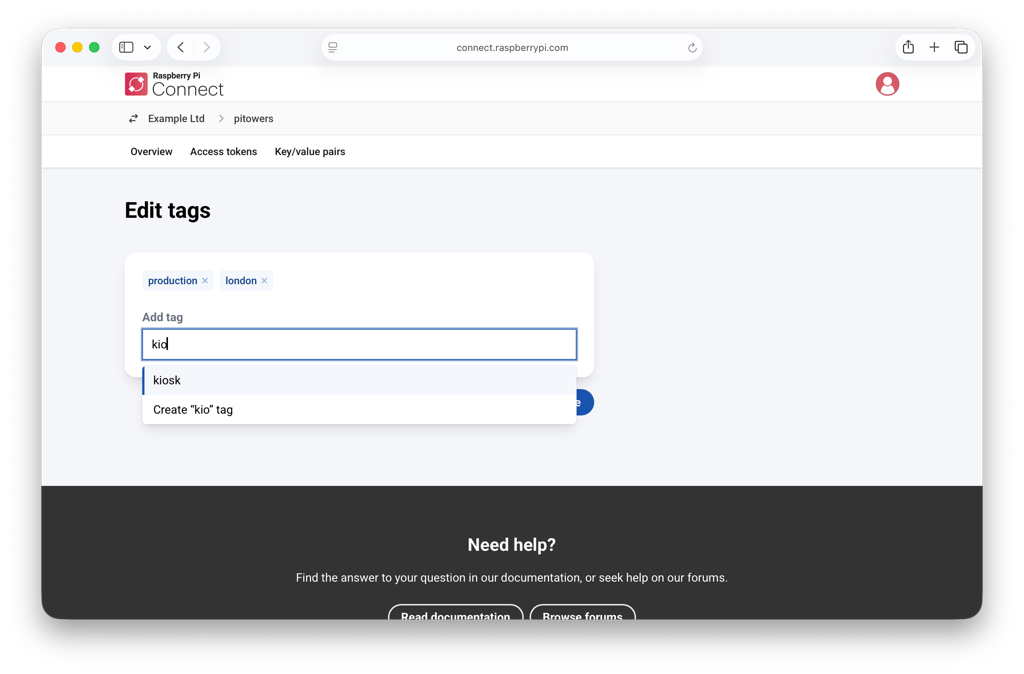
Once you have more than a handful of Raspberry Pi devices in an organisation, finding the right one quickly starts to matter. With these new updates, you can now apply tags to any device — for example, by location (london, cambridge), by environment (production, staging), or by what the device actually does (point-of-sale, kiosk). Tags appear underneath the device name on both the device page and the device list, and any administrator can add or remove them from the device’s Settings page, or when first linking a device to your account.
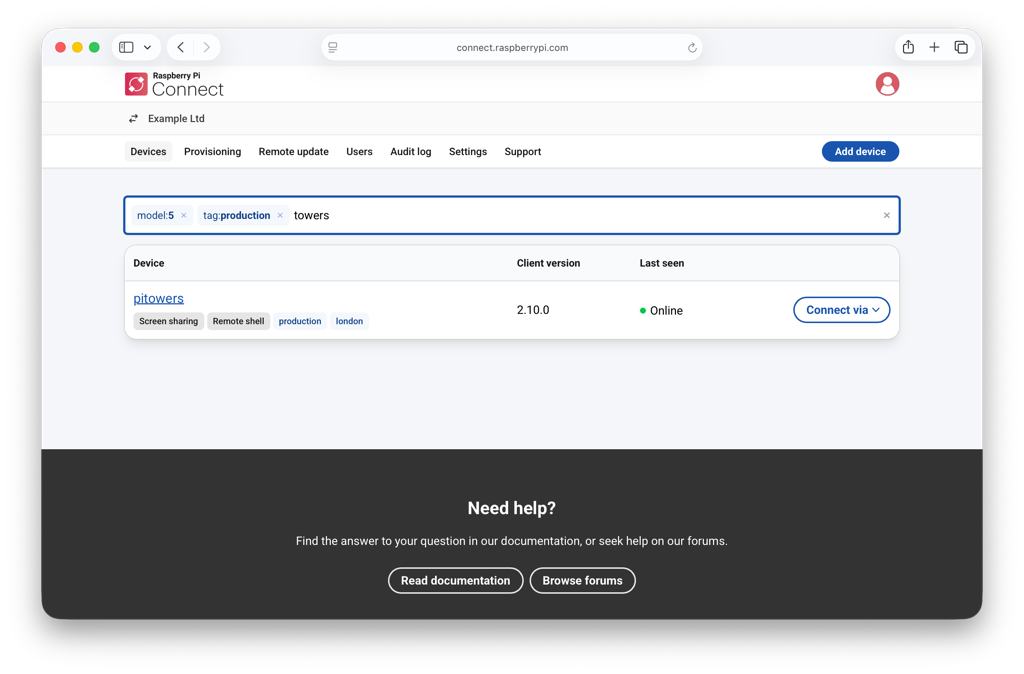
The search bar at the top of the device list now combines free-text search with structured filters. Type a qualifier followed by a colon — model:5, memory:4gb, os:raspios-13, or tag:production — and Connect will narrow the list as you type. You can even stack filters in a single query: model:5 tag:production dashboard will find every Raspberry Pi 5 tagged with production that has “dashboard” in its name. Selecting any tag in the device list adds it to your search instantly.
Tags are also exposed through the Management API, meaning you can apply them when you create an authentication key during provisioning — handy if you’re scripting the roll-out of a new batch of devices.
Require two-factor authentication for your organisation
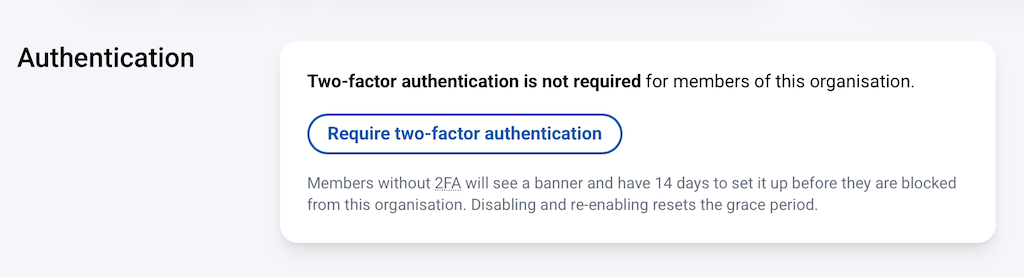
Connect for Organisations now lets administrators require all members to use two-factor authentication (2FA) on their Raspberry Pi ID. It’s a single switch in the new Authentication section of the organisation’s Settings tab, and it adds a meaningful layer of protection against compromised member accounts being used to reach your devices.
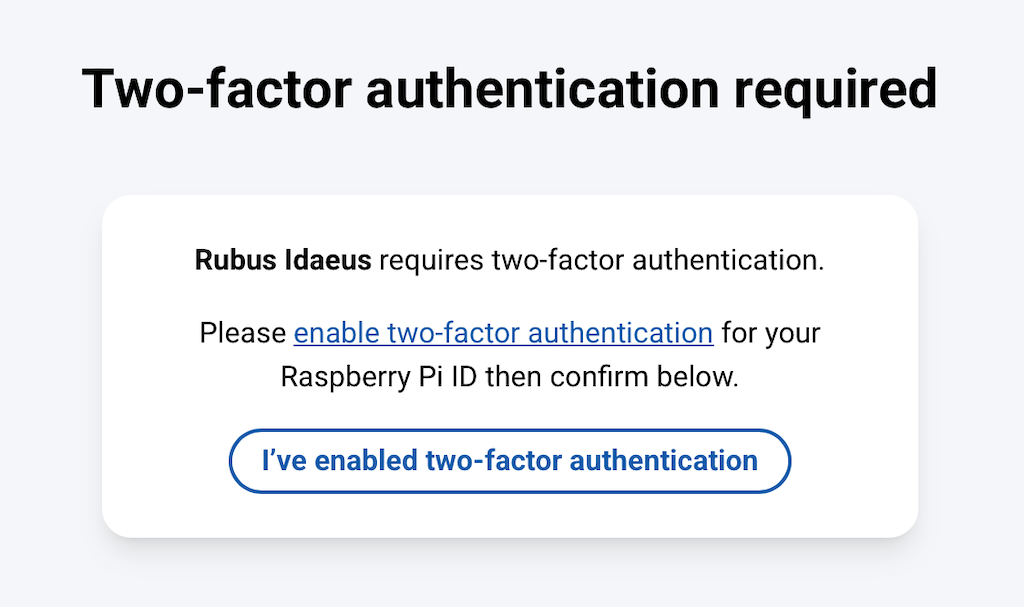
Turning it on starts a 14-day grace period. During that window, members without 2FA see a banner showing how long they have left and a link to enable it on their Raspberry Pi ID; everyone else carries on as normal. When the grace period ends, any member still without 2FA is blocked from the organisation until they enable it. They won’t be able to access devices or other organisation resources in the meantime.
If you ever want to relax the requirement, you can turn off 2FA in your organisation settings. (Disabling and re-enabling 2FA resets the grace period, so you can give members another two weeks if you need to.)
Use a mobile keyboard while screen sharing
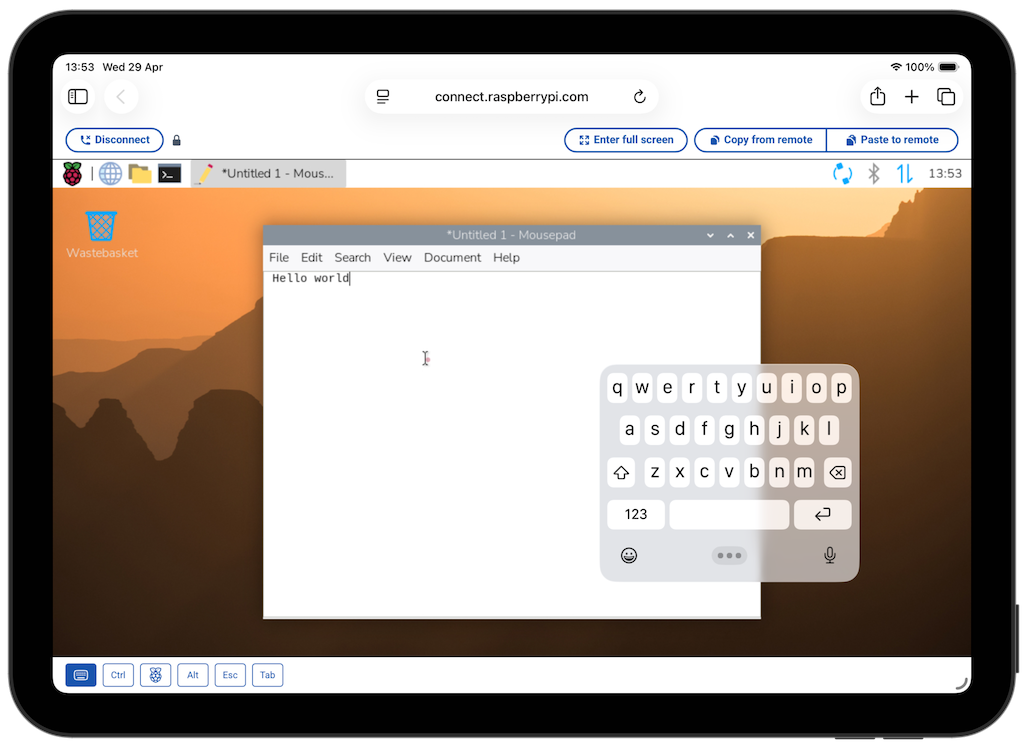
Connect’s screen-sharing interface works on phones and tablets as well as desktops, but typing on a touch device was previously only possible if you attached a physical keyboard. The screen-sharing toolbar now includes a dedicated Keyboard toggle alongside the existing buttons for Ctrl, Alt, Esc, and Tab, allowing you to use an on-screen keyboard on mobile devices without any extra hardware attached.
Try it out
Connect is free for personal use. Connect for Organisations comes with a four-week free trial, after which you’re billed monthly in arrears for the peak number of registered devices. You can find full instructions for tagging and filtering devices, enabling 2FA, and everything else in the Raspberry Pi Connect documentation, or sign in at connect.raspberrypi.com to get started.
The post Raspberry Pi Connect: Device tags, required 2FA, and a mobile keyboard appeared first on Raspberry Pi.
from News - Raspberry Pi https://ift.tt/gJm1F3D
Labels: IFTTT, News - Raspberry Pi

0 Comments:
Post a Comment
Subscribe to Post Comments [Atom]
<< Home